The admin page
Every Sridu server you run with Docker comes with its own settings page. There you see how much the app is used, give it your club’s name and colours, and choose which game modes and parts of the app your players get, how the lobby works, whether players can share sound packs and who gets blocked. This guide goes through it tab by tab.
First start
Open the admin page
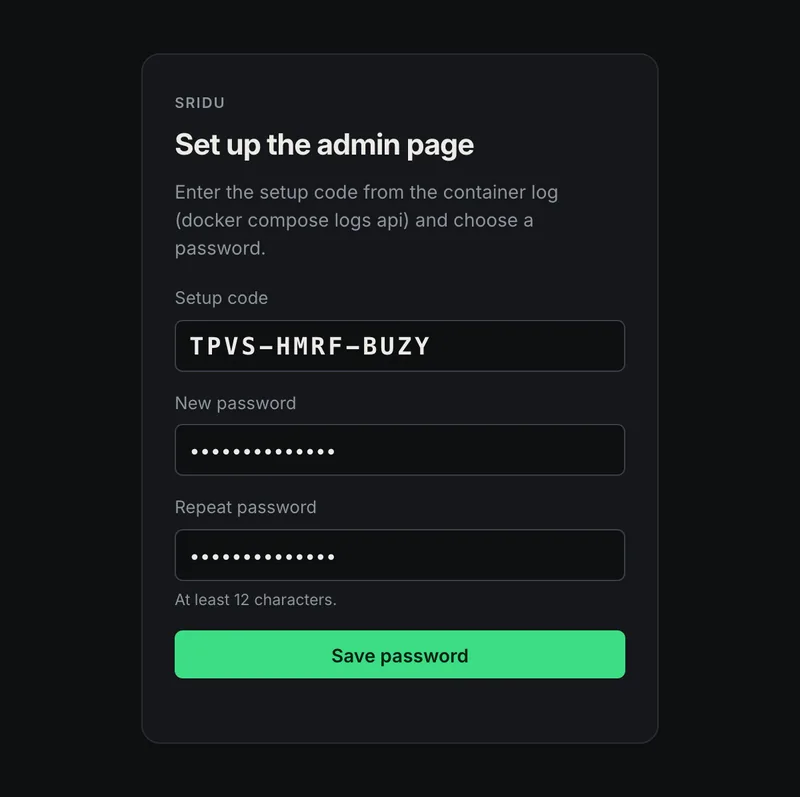
It only opens from your home network. On the first visit you set a password with a one-time setup code.
- Open the address from the table below in a browser on a computer in your home network. Use the IP address of the server, not your domain.
- Enter the setup code. It looks like ABCD-EFGH-JKLM and is in the file SETUP-CODE.txt in the data folder, and in the log of the admin container.
- Choose a password with at least 12 characters. The code and the file are gone after that, and from now on you sign in with the password.
| Docker at home | Public server | |
|---|---|---|
| Address | http://<IP>:8090/admin/ or https://<IP>:8443/admin/ | http://<NAS IP>:8110/admin/ |
| Setup code file | server/admin/SETUP-CODE.txt | deploy/public/data/SETUP-CODE.txt |
| Container log | sridu-api | sridu-public-api-1 |
Page not found? Then your request did not come from your home network. The admin page only answers private addresses (192.168…, 10…) that did not pass through a proxy, so through your domain or Cloudflare it stays hidden. That is on purpose.
- Signed out after a while: a session lasts up to 12 hours and ends after 2 hours without activity.
- Wrong passwords: after five failed attempts the page makes you wait, a little longer each time.
- Language: the page follows your browser. German browsers get German, all others English.
Overview
The tabs on the left
Each topic sits in its own box with its own Save button, and the small i next to a setting explains what it is for. Saved changes reach players the next time the app loads. No restart needed. Every tab has its own icon, and the search field above the menu finds any setting by name and jumps to it. On a phone the menu becomes one row that scrolls sideways.
Overview
What is going on at your installation
The admin page opens on the overview: how much the app is used, and what needs your attention. Usage is counted in daily sums, without cookies and without knowing who.
- Three figures: app starts, finished matches and darts thrown, each for today, 7 days, 30 days and since counting began.
- A chart of 30 days: finished matches per day. Point at a bar to see that day’s matches, darts and app starts.
- Most played: the game modes with the most finished matches in the last 30 days.
- Right now: who is in the lobby, how many players are on the leaderboard and how many were active in the last 7 days, open lobby reports and the app version. A button next to each takes you to its tab.
- Count usage: the switch at the bottom, on by default (
SRIDU_COUNTERS). Clear figures deletes everything counted so far.
What is counted, and what is not
- App startsEvery app loads the settings file of the installation once when it starts. The server counts those requests.
- Finished matchesWhen a match ends, the app sends the game mode, the number of darts and, with cameras, how many darts were fixed by hand to this server, and to nobody else. No player, no device ID.
- Never storedCookies, device IDs, names and addresses. Against abuse the server keeps an address in memory for an hour at most.
- Kept400 days of daily sums, in
usage.jsonin the data folder. - OffThe app sends nothing and the server counts nothing.
Others use your installation? Mention the usage figures in your privacy policy. The template on the Legal tab has a paragraph for it. How play.sridu.com words it is in its privacy policy.
General
What this installation is
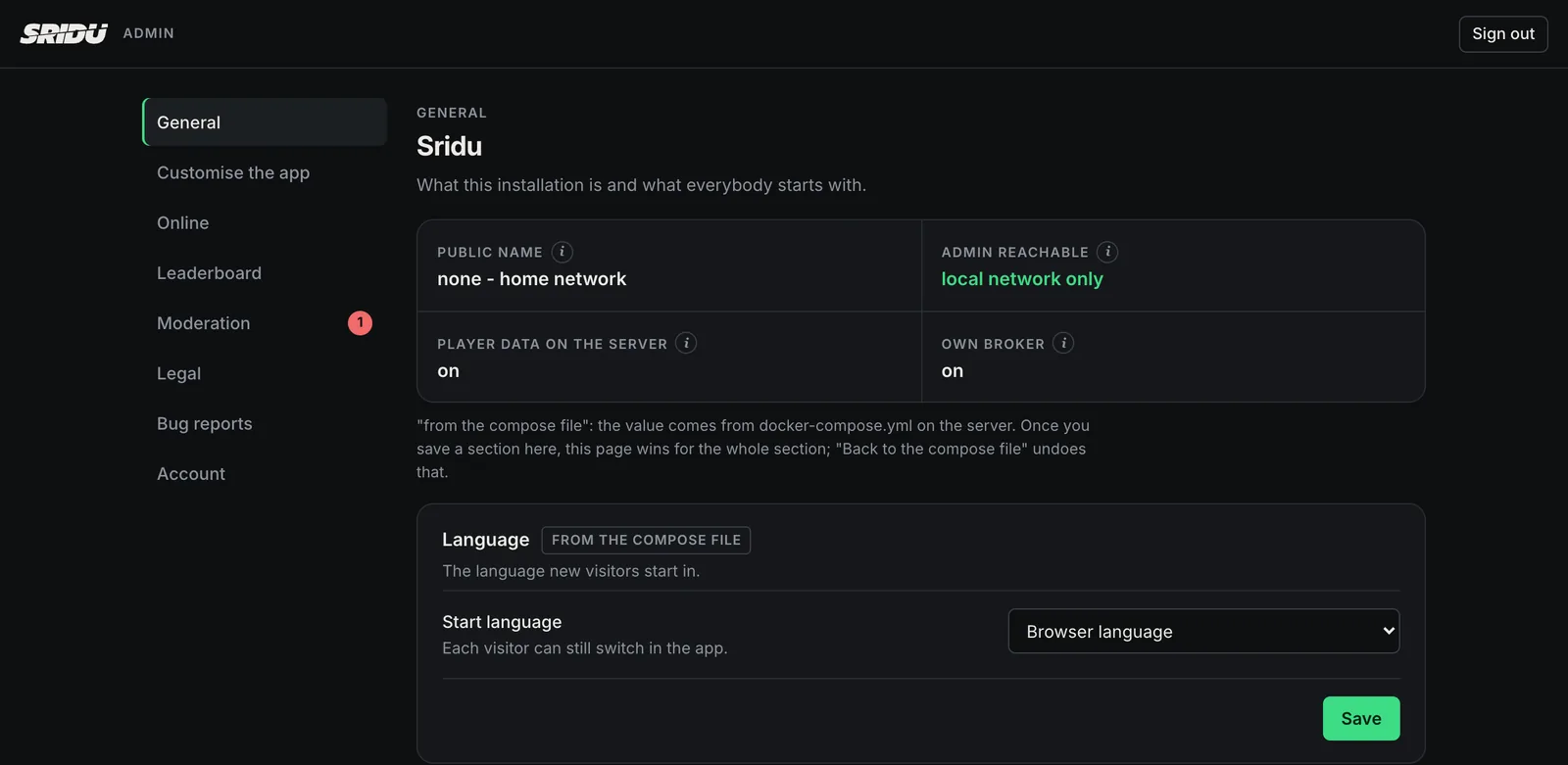
The facts at the top, the start language, and how strict playing is.
- Four facts at the top: public name, whether the admin page can be reached from outside, whether player data is kept on the server, and whether the own broker runs. They come from
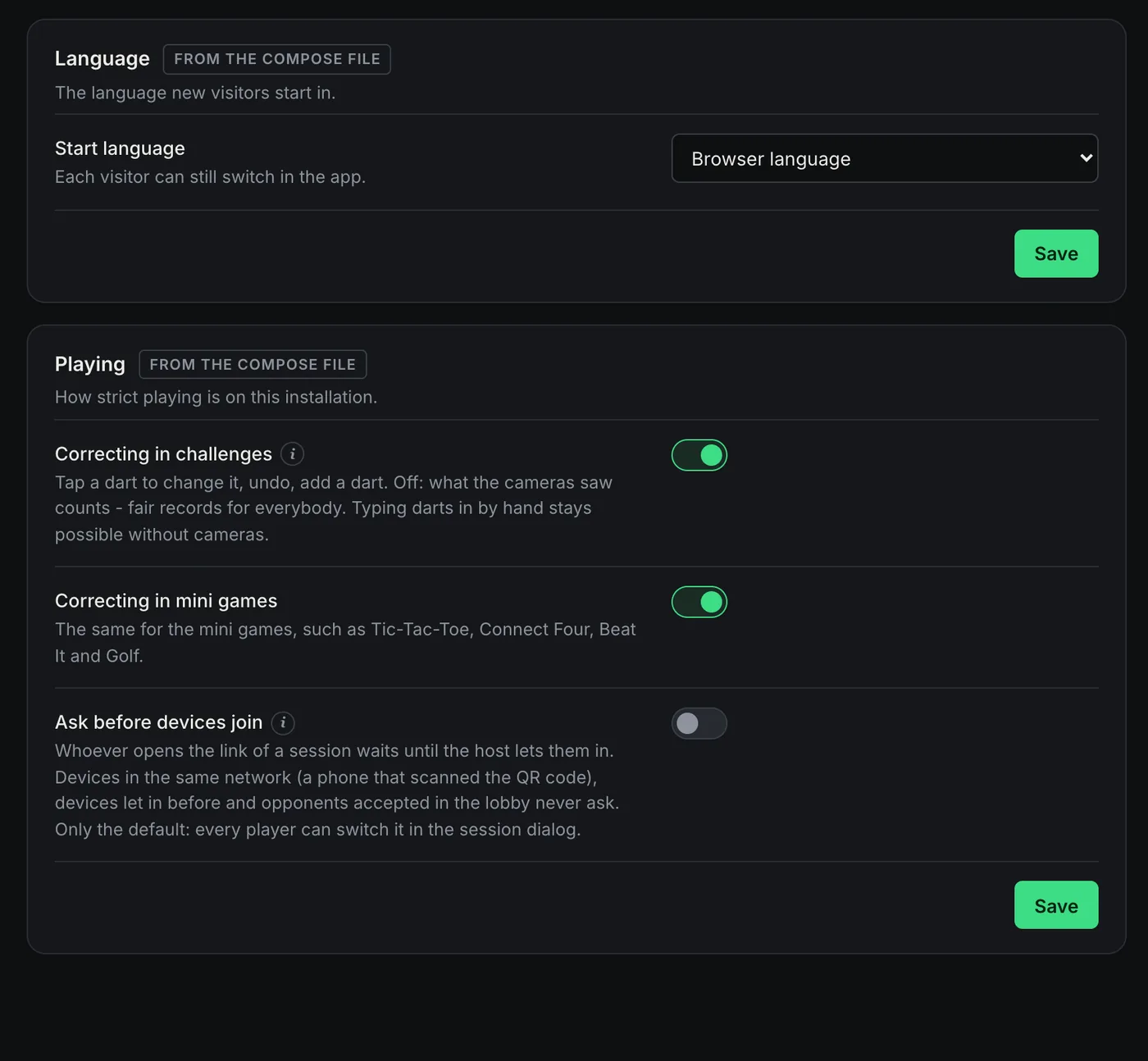
docker-compose.ymland can only be changed there. - Start language: what new visitors see first. The default is the browser language, and every player can still switch in the app.
- Correcting in challenges and in training and warm-up games: off means only what the cameras saw counts, on the leaderboard too. Useful when strangers compete for records. At home just leave it on. Party games such as Tic-Tac-Toe can always be corrected.
- Ask before devices join: whoever opens a session link waits until the host lets them in. Devices in the same network never ask. It is only the default, players can change it for each session.
- Progress: player level, all badges with notes in the game, plus daily goals and unlocks on their own switches. Off by default, then the app looks as it always did. What it is: Level & badges.
docker-compose.yml.Look & welcome
Your name, your colours, your welcome
For a club, a pub or the board in the basement. Empty fields leave Sridu as it is, and a preview shows the top of the start page while you type.
| Field | What it does |
|---|---|
| Name of the installation | In the browser tab and on the start page, for example “DC Bullseye”. Up to 40 characters. Also possible as SRIDU_NAME in docker-compose.yml. |
| Accent colour | Buttons, highlights and the effects on the board. Switched off, the Sridu green stays. Also possible as SRIDU_ACCENT, for example "#e11d48". |
| Logo | PNG, JPEG or WebP up to 256 KB, shown on the start page next to the welcome. It is uploaded as soon as you pick it, no Save needed. |
| Welcome text | A few lines at the top of the start page: opening hours, house rules, who to ask. Plain text, up to 600 characters. |
| Colour scheme | What every device starts in: Dark (Sridu), Light, Pub or Tour. A look a player unlocked through level & badges still wins on their device. |
| Link to your page | The club website or a page with the house rules, shown under the welcome. The link text is optional. |
Announcement
- MessageUp to 300 characters at the top of the start page, such as a tournament on Friday or board 2 being repaired. Empty means no announcement.
- KindNote or Important.
- Show untilOptional. From the day after, the announcement is gone by itself.
- Hidden by the playerPlayers can close it. A new text shows up again.
Customise the app
Choose what your players see
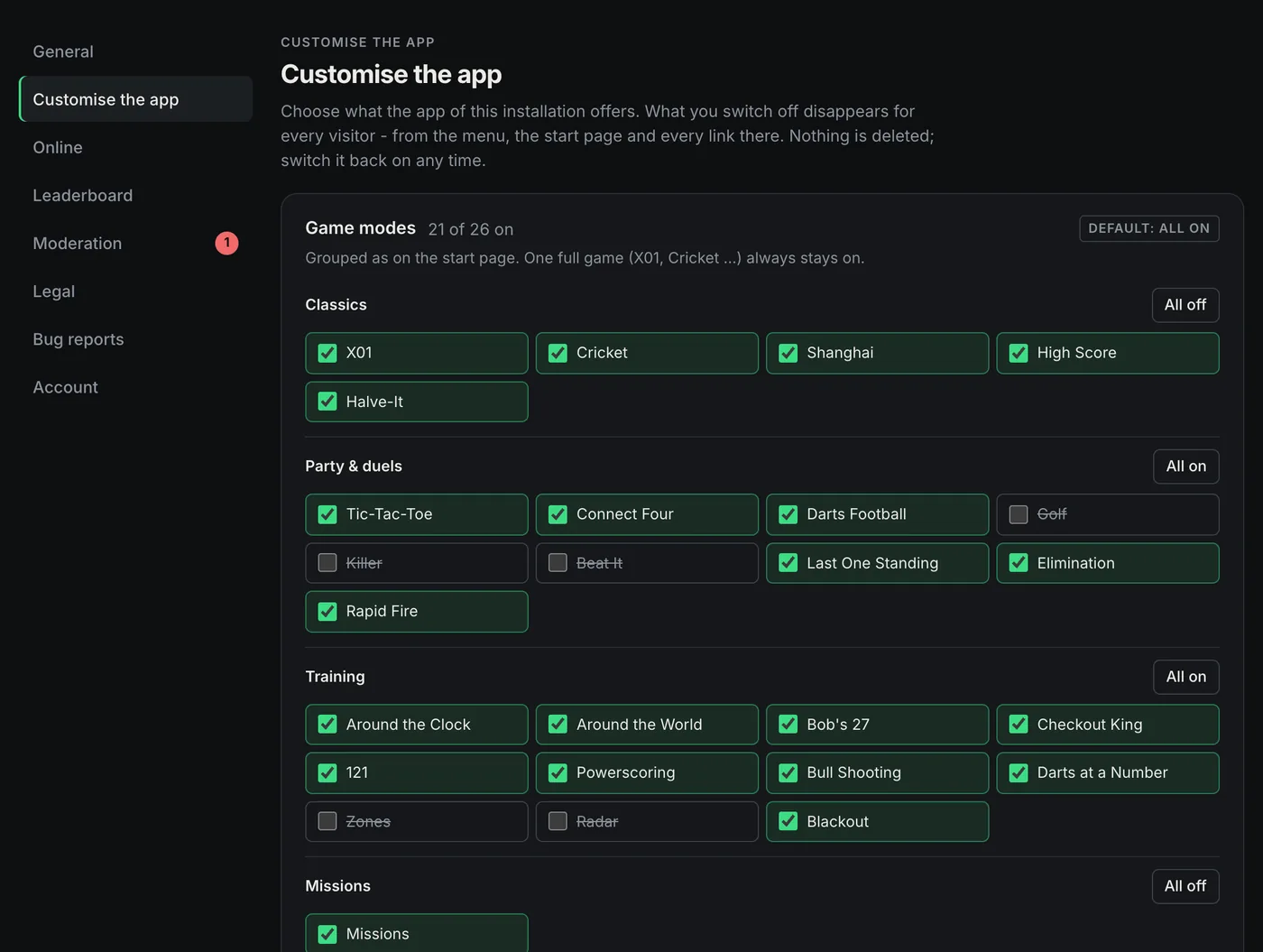
This tab changes the most. Whatever you switch off disappears for every visitor of this installation: from the menu, from the start page and from every button that leads there. Nothing is deleted, and you can switch it back on at any time.
Game modes
- Grouped as on the start page: Classics, Party & duels and Training, with Missions in Training. Untick single modes, or use All off and All on for a whole group.
- One full game always stays on, because quick start and tournaments need one. Untick them all and X01 comes back by itself.
- Only here: there is no line for this in
docker-compose.yml. The badge “Default: all on” says nothing has been switched off yet. - An example: for a league night keep X01 and Cricket, for a kids’ party keep the party games.
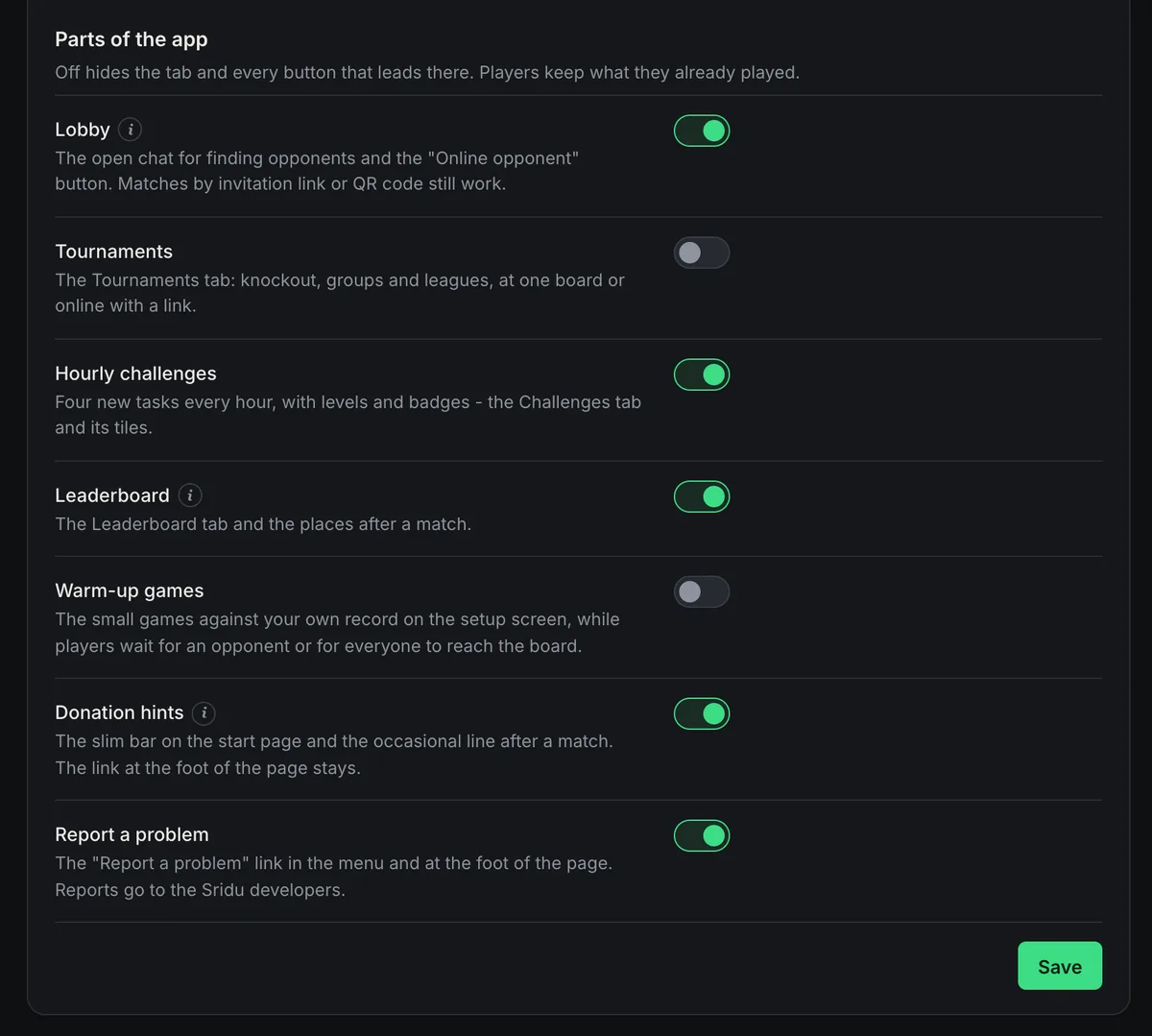
Parts of the app
Off hides the tab and every button that leads there. Players keep what they have already played.
| Switch | Off means |
|---|---|
| Lobby | No open chat and no “Online opponent” button. The lobby on this server stops too, whatever the Online tab says. Matches by invitation link or QR code still work. |
| Tournaments | The Tournaments tab is gone. |
| Hourly challenges | The Challenges tab and the hourly challenge on the start page are gone. The daily goals stay if progress is on. |
| Leaderboard | No Leaderboard tab, no places after a match, and no results go to this server’s leaderboard. |
| Warm-up games | No small games against your own record on the setup screen while players wait. |
| Donation hints | No slim bar on the start page and no line after a match. The link at the foot of the page stays. Sridu is free and lives on donations, so please leave it on if you can. |
| Report a problem | The link in the menu and at the foot of the page is gone. See Bug reports. |
Start settings for new devices
What a device starts with the first time it opens the app. Whatever a player changes afterwards stays theirs, and devices that used the app before keep their settings. Every field also has As the app comes.
| Setting | Choices |
|---|---|
| Game on the start page | Any game mode |
| X01 start score and finish | 101 to 1001, Double Out, Master Out or Single Out |
| Legs | One leg, or first to 2 up to first to 9 |
| Caller and voice | On or off, the studio voice where there is one or the voice of the browser |
| Strength of a new bot | An average from 15 to 110 |
| End visit automatically | Off, or after 5 to 60 seconds |
| Pass over idle players | Off, or after 30 seconds to 5 minutes |
When do players see it? The next time the app loads. An app that is already open keeps the old state until it is reloaded.
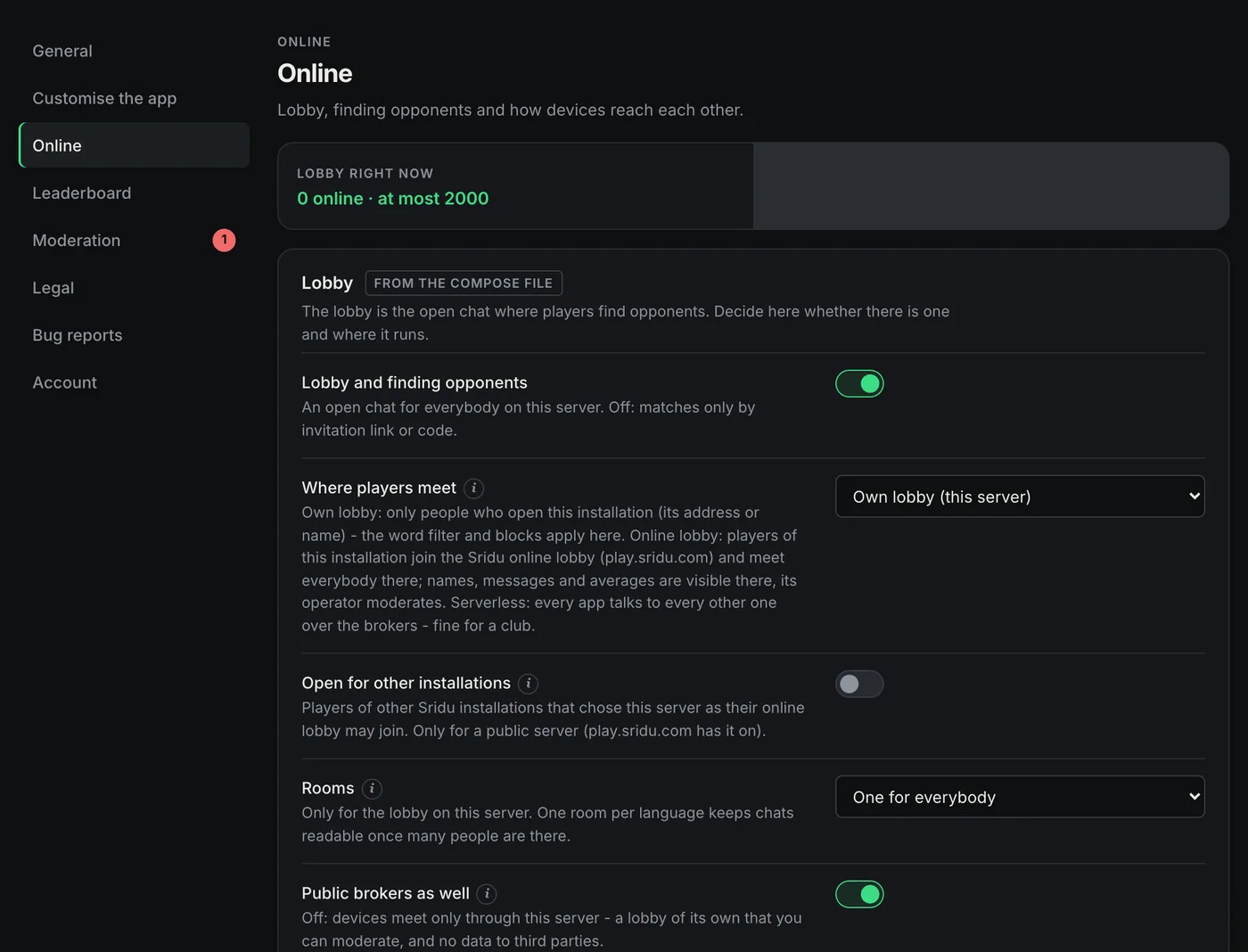
Online
Lobby and connections
Whether there is a lobby, where it runs, and how two devices find each other for a match. “Lobby right now” at the top shows how many players are in it.
- Lobby and finding opponents: the open chat. Off means matches only by invitation link or code.
- Where players meet: your own lobby (only people on your installation, your word filter and blocks apply), the Sridu online lobby on play.sridu.com (more opponents, moderated there), or serverless over the brokers.
- Open for other installations only matters for a public server that others use as their lobby. Rooms: one per language keeps the chat readable once it gets busy.
- Public brokers as well: off keeps even the handshake before a match on your server. It needs the own broker.
- STUN and relay (TURN): leave them empty unless online matches fail to connect. The relay login is visible to every visitor. Setting up your own relay is covered under public server.
Leaderboard
The shared leaderboard
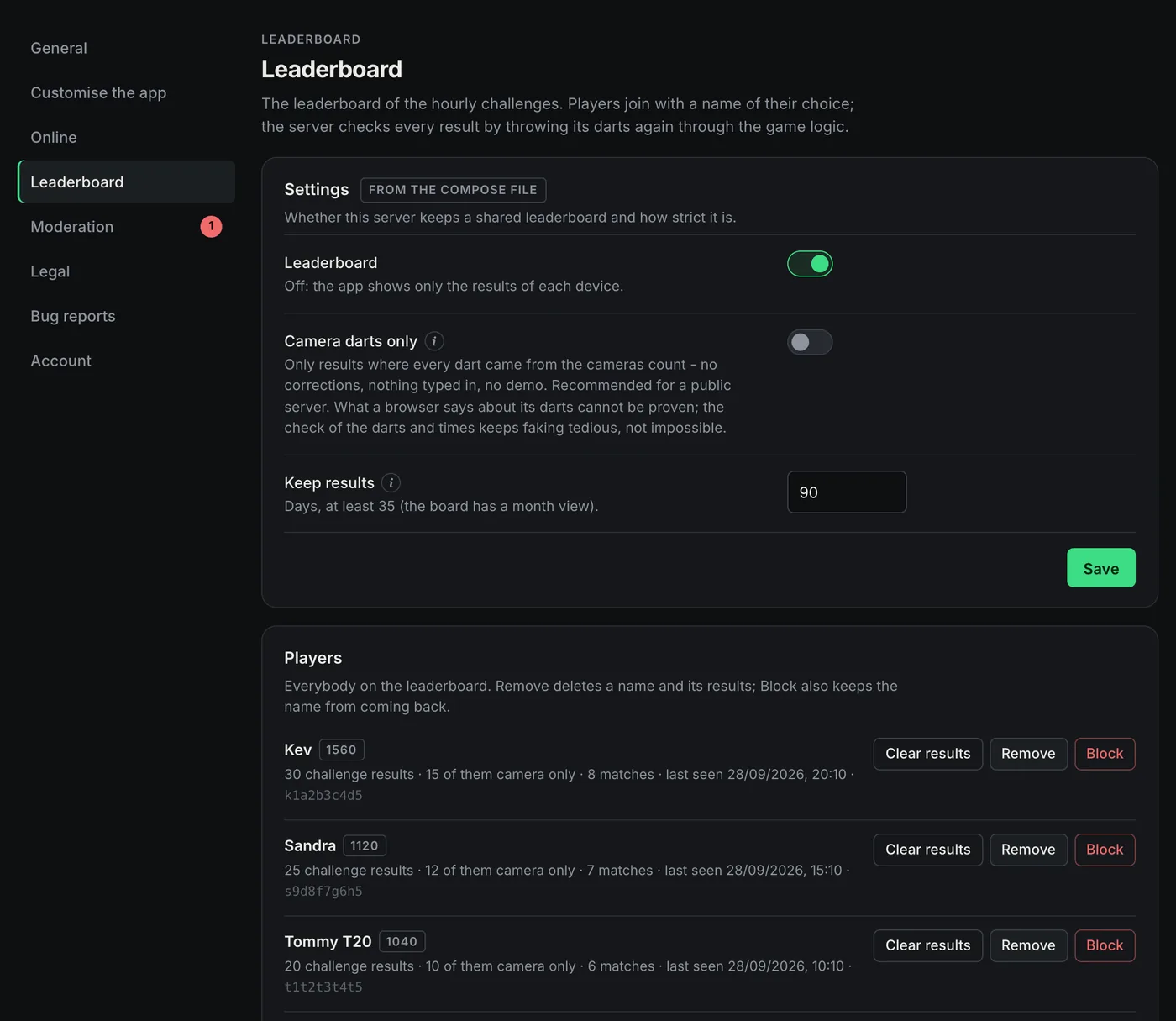
The leaderboards of this server, for challenges, matches and training, and everybody on them.
- Leaderboard on or off. Off: every device only shows its own results.
- Camera darts only: a result counts only if every dart came from the cameras, with no corrections and nothing typed in. Meant for a public server where strangers compete. At home it only spoils the fun.
- Training games and warm-up games: one switch each for whether they count online. Off: their records stay on the device and only show on the “This device” board.
- Keep results: 35 to 730 days, 90 by default. Older results are deleted automatically.
- Players: everyone on the board with points and last visit. Clear results keeps the name, Remove deletes name and results, Block also keeps the name from coming back. Blocked names can be unblocked later.
Moderation
Reports, filter and blocks
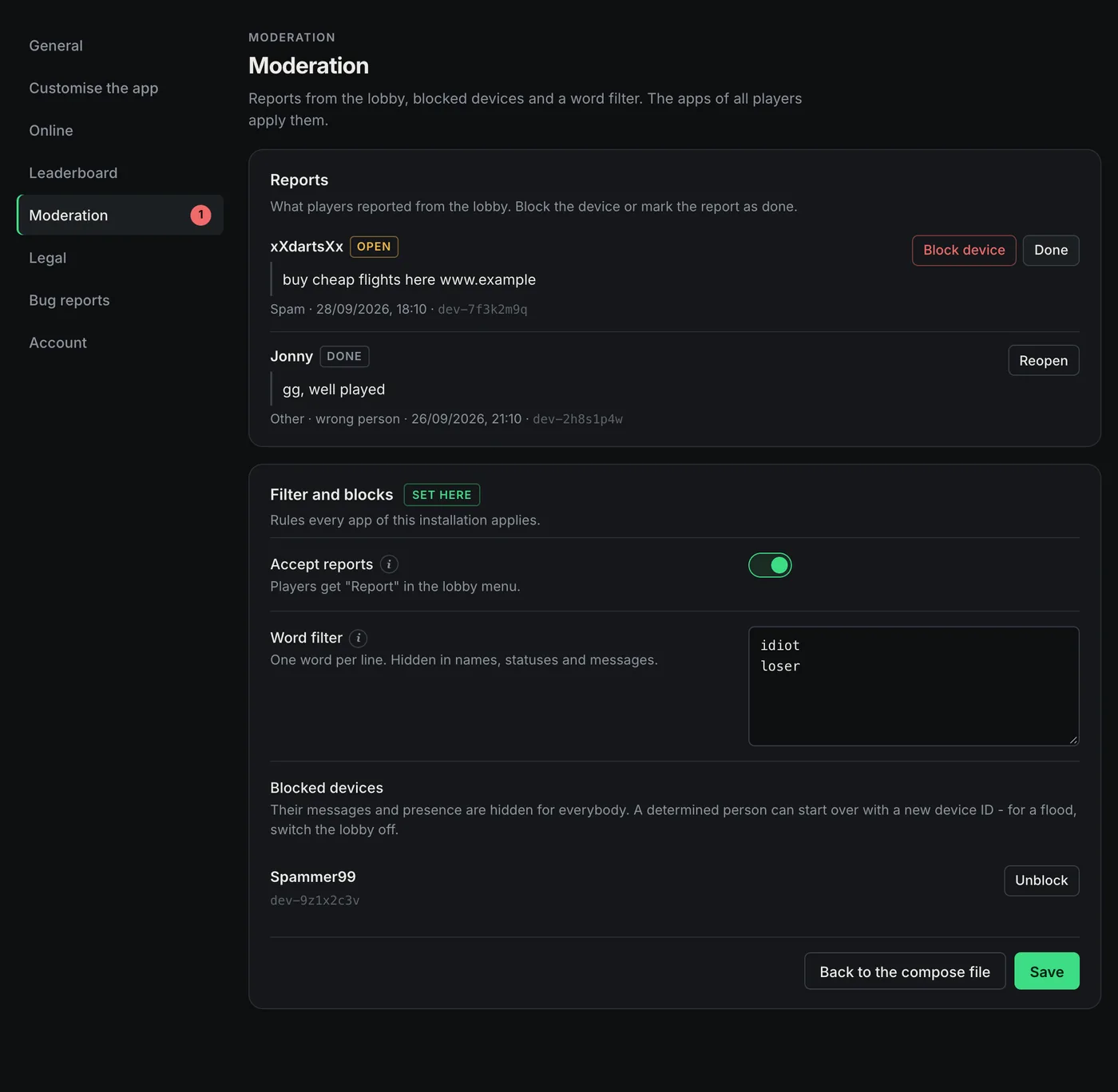
For your own lobby. Every app of this installation applies these rules.
- Reports: what players reported with “Report” in the lobby, with reason and message. Block device or Done. A red number in the menu counts the open ones.
- Accept reports: off removes “Report” from the lobby menu. Only useful with your own lobby, in the Sridu online lobby reports go to its operator.
- Word filter: one word per line. It is replaced by stars in names, statuses and messages, upper or lower case does not matter.
- Blocked devices: their messages and presence are hidden for everybody. Someone determined can come back with a new device ID, so during a flood switch the lobby off.
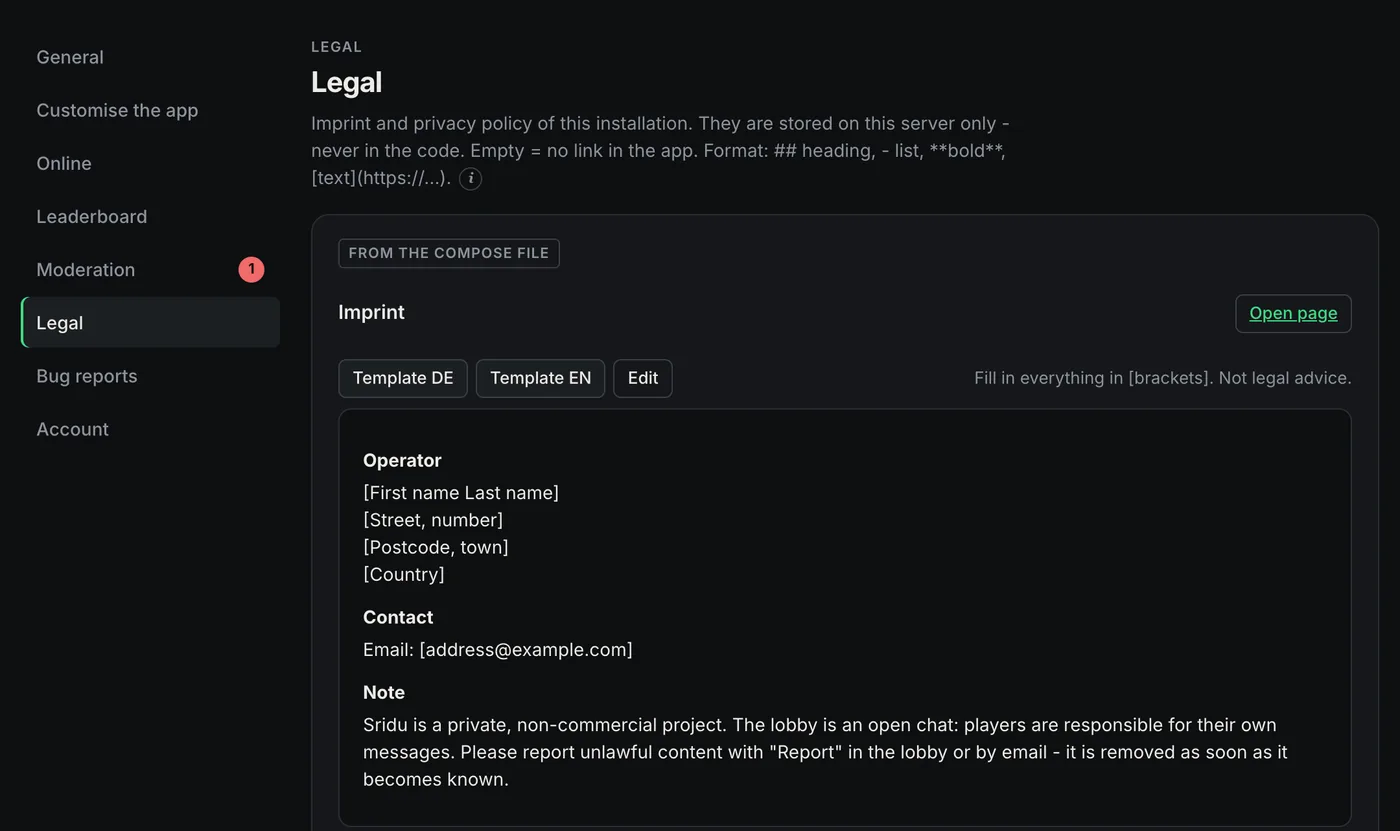
Legal
Imprint and privacy policy
The legal texts of your installation. They are stored on your server only.
- When you need them: often as soon as other people use your server over the internet, in Germany for example. A pure home server can leave both empty.
- Templates in German and English fill the box. Replace everything in [brackets]. They are not legal advice.
- Simple formatting:
## heading,- list,**bold**,[text](https://…). Preview shows the result, Open page the live page at/imprintor/privacy. - Empty means no link. With text in it, the app links to the page at the bottom of its start page.
Bug reports
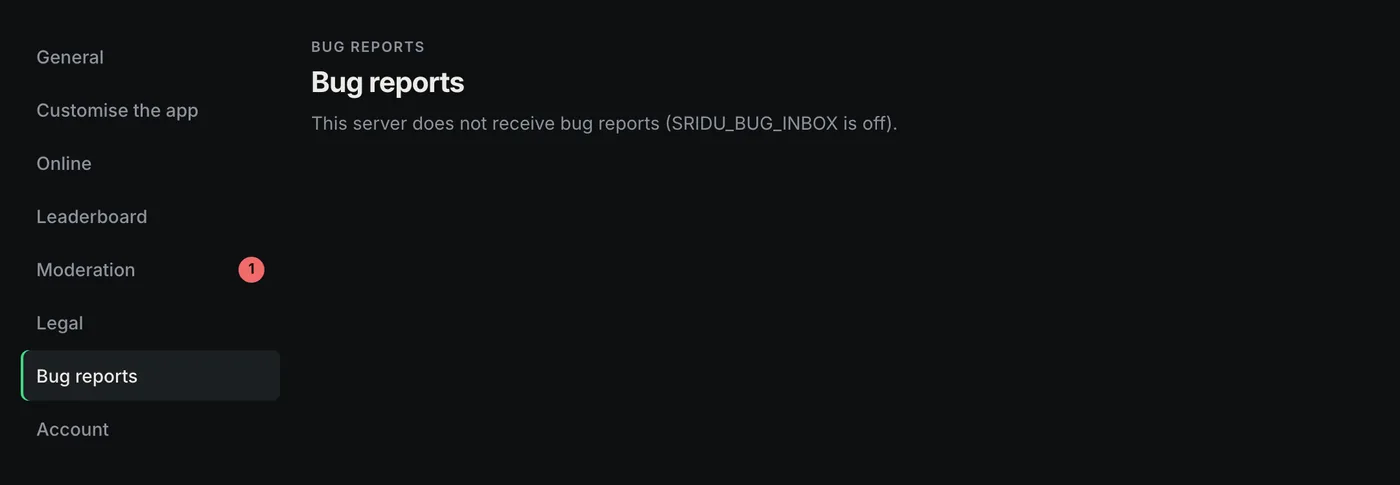
Empty on your server, and that is right
This tab is the inbox of play.sridu.com, which receives the reports of every installation.
- On your own server it only shows the note that it does not receive bug reports (
SRIDU_BUG_INBOXis off). - Your players’ reports from “Report a problem” go straight to the Sridu developers. Player names are never included. What your players see and what goes along is on Report a problem.
- Rather not? Set
SRIDU_BUG_REPORTS: "off"indocker-compose.yml, then the app only offers e-mail or saving the report as a file. To hide the link completely, switch off “Report a problem” under Customise the app. - Public server: its compose file is play.sridu.com’s own and has the inbox on. Set
SRIDU_BUG_INBOX: "off"there.
Sound packs
A shared library for sound packs
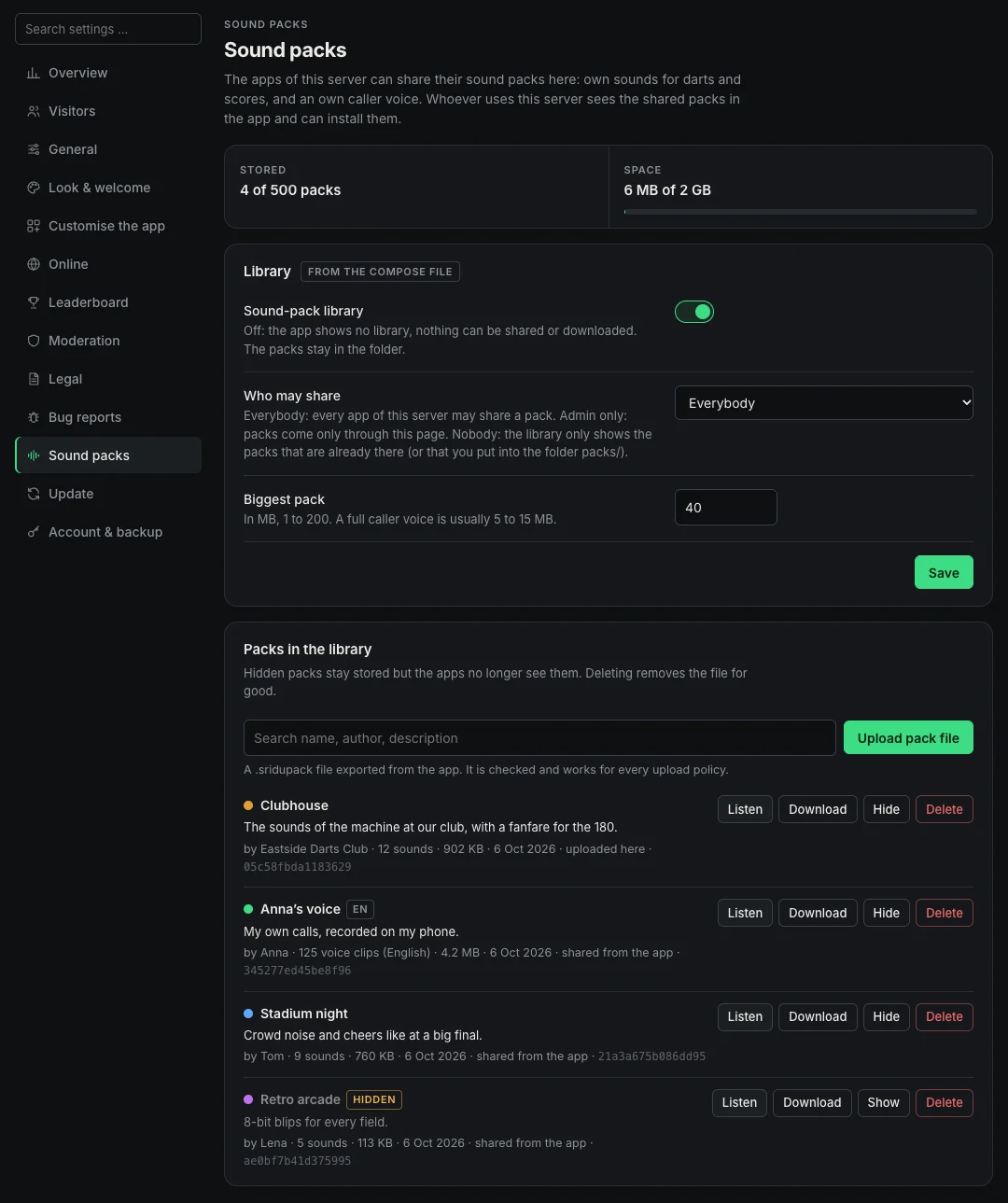
In the app, players can make their own sounds and record their own caller voice (how it works). Those packs normally stay on each device. With the library, everyone using your server can share them, listen in and install them from the Library tab in the app.
- Sound-pack library: the main switch. When it is off, the app shows no library, nothing can be shared or downloaded, and the packs stay in the folder. With
SRIDU_PACKS: "off"indocker-compose.ymlnothing is stored at all and the switch stays grey. The public setup indeploy/public/keeps the library off. - Who may share: with Everybody, every app on this server may share a pack. With Admin only, packs only come in through this page. Nobody (read only) just shows what is already there.
- Biggest pack: in MB, from 1 to 200, 40 to start with. A full caller voice is usually 5 to 15 MB.
- The list: every pack with its author, sounds and voice clips, size and where it came from. Listen plays a few clips, Download saves the file, Hide keeps it stored but out of the apps, and Delete removes it for good. Devices that installed it keep their copy.
- Upload pack file adds a .sridupack file exported from the app, whatever the share setting says. You can also copy files into
./server/admin/packs/. They are added at the next start or when you open this tab. - Checked on the way in: every upload is checked byte by byte for format, limits and real audio, then written anew. The library holds at most 500 packs and 2 GB.
Update
Updates in one click
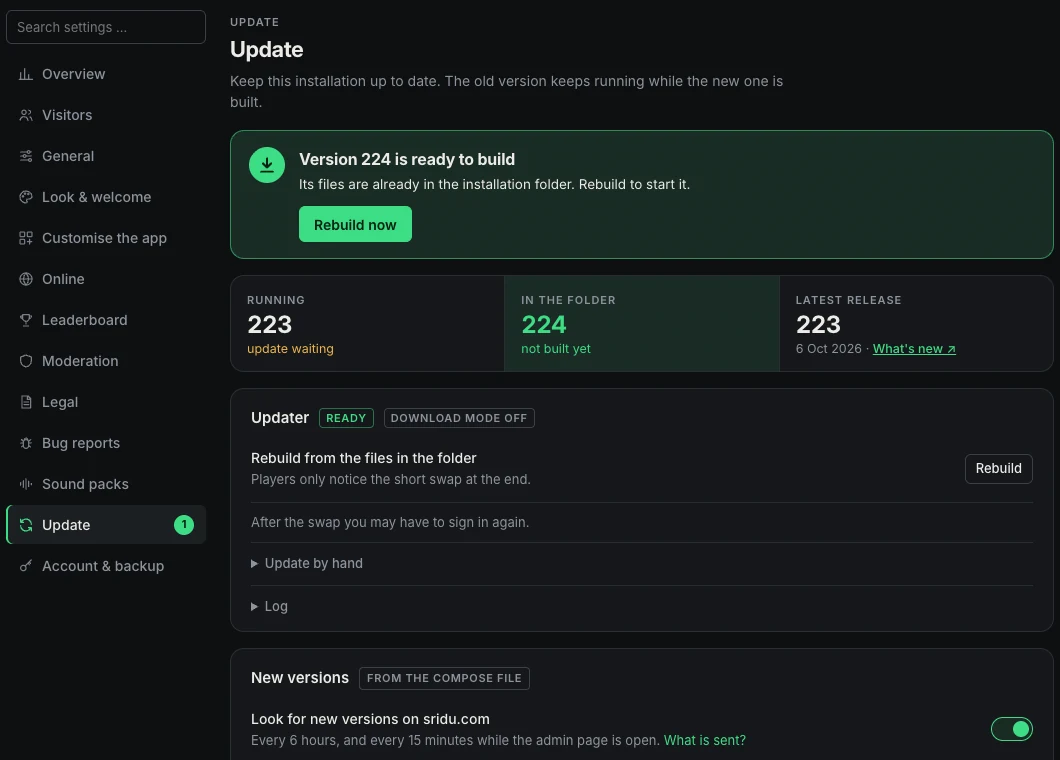
The Update tab brings your installation to a new version. A small helper container, the updater, builds it while the old containers keep running and then swaps only the ones that changed. Players notice a break of a few seconds.
- Status at the top: one card says what is going on (up to date, a new version is ready, updating, failed) and offers the button for the next step. Below it you see the running version, the one in your folder and the latest release.
- Rebuild: builds again from the files in your installation folder, for example after you unpacked a new release over it.
- Download and update: with the download mode switched on in
docker-compose.yml(how). It fetches the new version from sridu.com, leaves your compose files, settings and data alone and rebuilds. Go back puts the files from before the last download back. - You see when something is waiting: a small “1” next to Update in the menu and a banner on the overview. That happens when a newer release is out, or when a newer version is already in your folder but not built yet.
- How it knows: every six hours, and every 15 minutes while the admin page is open, your server fetches a small file from sridu.com (
latest.json). Check now asks right away. “What is sent?” on the tab shows exactly what goes out: a plain request without cookies or an ID, and nothing is downloaded or installed by it. Switch it off on the tab or withSRIDU_UPDATE_CHECK: "off". - Folded away: the steps for updating by hand and the log. If a build fails, the old version simply keeps running.
- Safe by design: only the updater may use Docker, and the admin page can ask it for these three jobs and nothing else. It has no open port and sits outside the network of your other containers. Rather not have it? Delete the service
updaterfromdocker-compose.yml. - No updater yet? On older installations the tab shows the lines to add to
docker-compose.yml. After the swap the admin page may ask for your password again.
Account & backup
Your password and a backup
There is one password for the page and no user names.
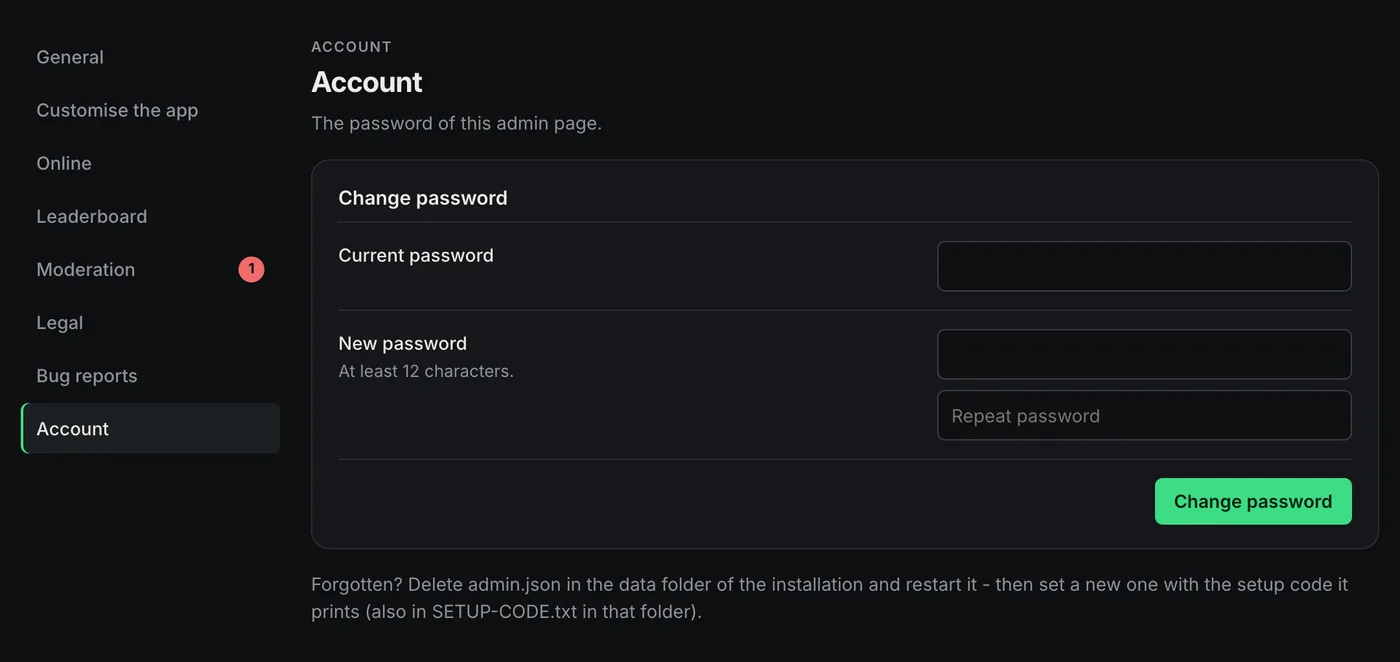
- Change password: the current one, then the new one twice, at least 12 characters. Every other signed-in browser is signed out.
- Sign out is at the top right of every tab.
- Forgotten? The line under the form says it: delete
admin.jsonand restart, then set a new password with the setup code. Step by step in the questions below. You do not lose any settings. - Backup: Download backup saves every setting of the admin page in one file, to keep or to take to another installation. The admin password and the relay password are not in it, and the logo stays on the server. Restore from file replaces every setting with the ones in the file.
Two places
docker-compose.yml or admin page?
Most settings exist in both. The file gives the starting value, and the admin page can overrule it, one box at a time.
| On the box | What it means |
|---|---|
| from the compose file | The value comes from docker-compose.yml. Change it in the file and restart, or save the box here. |
| set here | You saved this box on the admin page. It now wins over the file, also after a restart or an update. Changes in the file to this box have no effect. |
| Back to the compose file | The button appears once a box has been saved here. It drops the saved values, and the file counts again. |
| Default: all on | Customise the app, the announcement and the start settings for new devices. They only exist on the admin page. Once saved, Back to the default drops them again. |
- Only on the admin page: Customise the app, logo, welcome text and announcement, start settings for new devices, word filter and blocked devices, imprint and privacy policy, the players on the leaderboard.
- Only in the file: public name,
SRIDU_HOSTS, ports, own broker, player data on the server, admin access from outside,PUID/PGID. - Every setting in the file is listed in the settings reference.
Questions
When something is not clear
I forgot the password
Delete the file admin.json in the data folder (server/admin/ at home, deploy/public/data/ on the public server) and restart the project. Synology: Project, Action, Restart. Terminal: docker compose restart api in the folder with docker-compose.yml.
A new setup code is then in SETUP-CODE.txt and in the log, and you choose a new password. Settings, leaderboard and legal texts stay as they are.
Can I open it from outside my home network?
The safe way is a VPN that puts your phone or laptop into your home network, for example the VPN of your router. Then use the usual local address.
Otherwise add SRIDU_ADMIN_REMOTE: "on" to the settings at the top of docker-compose.yml and restart. The page then answers from anywhere, your domain included. Only do that with a long password.
Where are the settings stored?
In the data folder, as plain files: settings.json (everything saved on the admin page), admin.json (the password, only as a hash), board.json (leaderboard), reports.json (lobby reports), usage.json (usage figures) and the logo. Back up the folder and you keep all of it.
Delete settings.json and restart, and every box is back to the values of docker-compose.yml. Everything that only exists on the admin page is gone then too: customised app, word filter, blocks and legal texts.
Do I have to restart after a change?
Not after saving on the admin page. Players get the change the next time the app loads. Only changes to docker-compose.yml need a restart.
Why is there no admin page with just the files or on web space?
The admin page belongs to the admin service of the Docker setup. The file-only and web space ways have no server of their own, see the four ways side by side. For web space and Cloudflare Pages there is the configurator instead: the same choices where they work without a server, saved as config.json.
Setting up the server itself? The installation for Synology, Unraid, Linux and Docker Desktop is in Docker at home, the domain setup in public server. Every device can then also install Sridu as an app. Hosting for a pub or an event? See who may do what.