Features · Streamer mode
Your darts match, live on stream
The scoreboard of your match over your camera picture in OBS or Streamlabs. It follows every dart by itself, so there is nothing to type while you play.
- Browser Source for OBS and Streamlabs
- Ten parts, each one optional
- Free on YouTube and Twitch
What it shows
Everything a TV broadcast shows
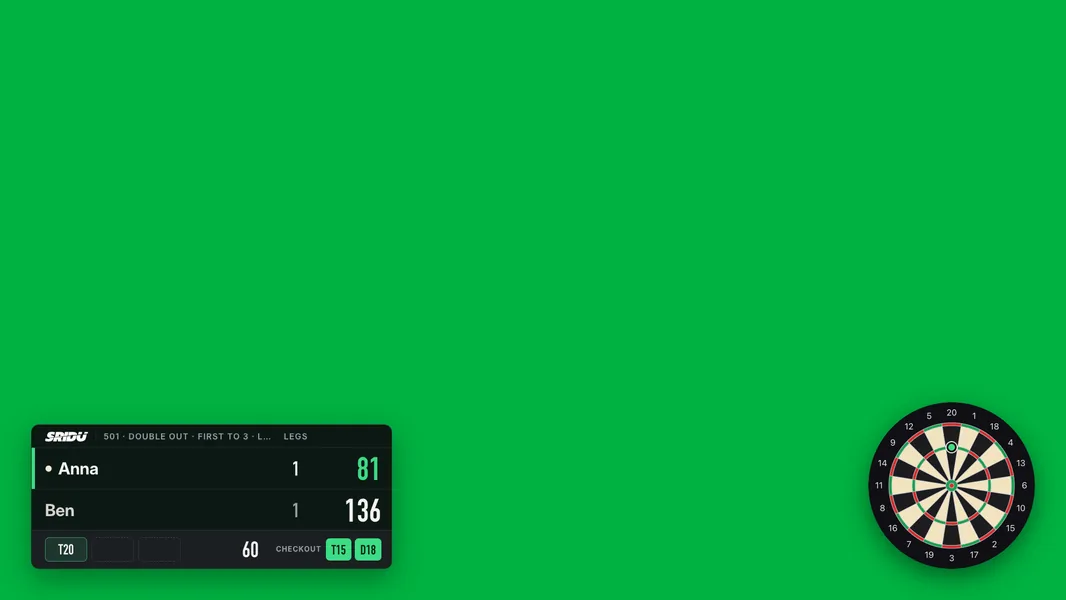
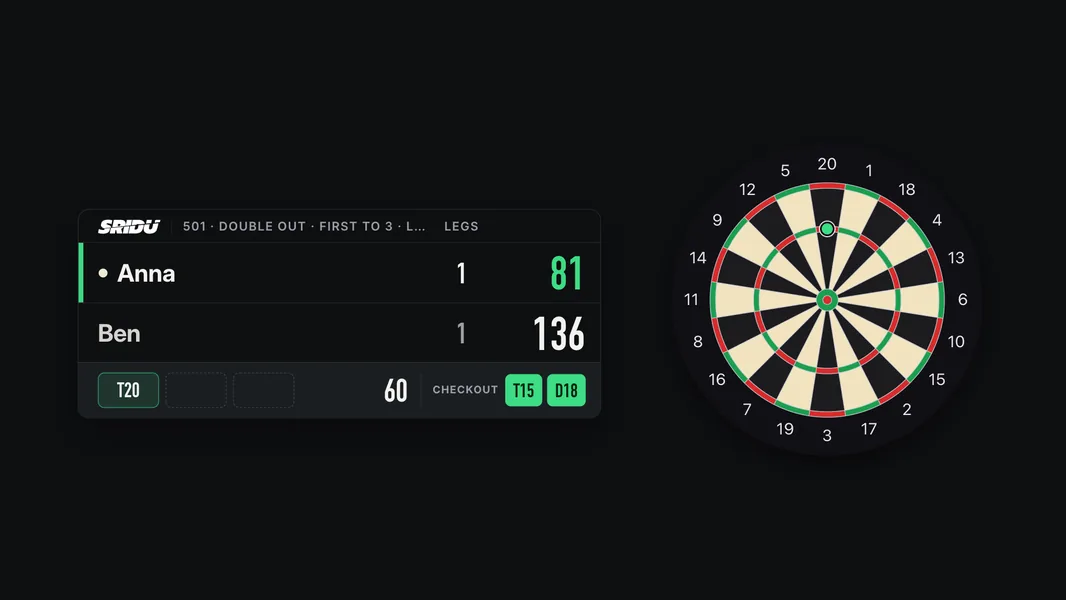
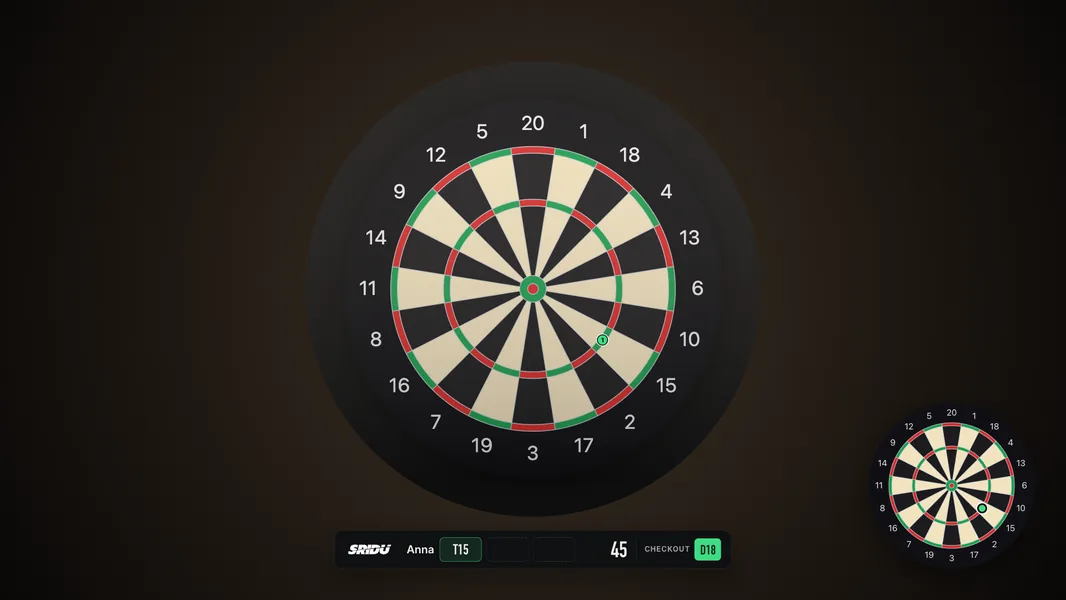
Ten parts, each one optional. Six are on from the start, tick the others in the panel. Every picture on this page is the real overlay.
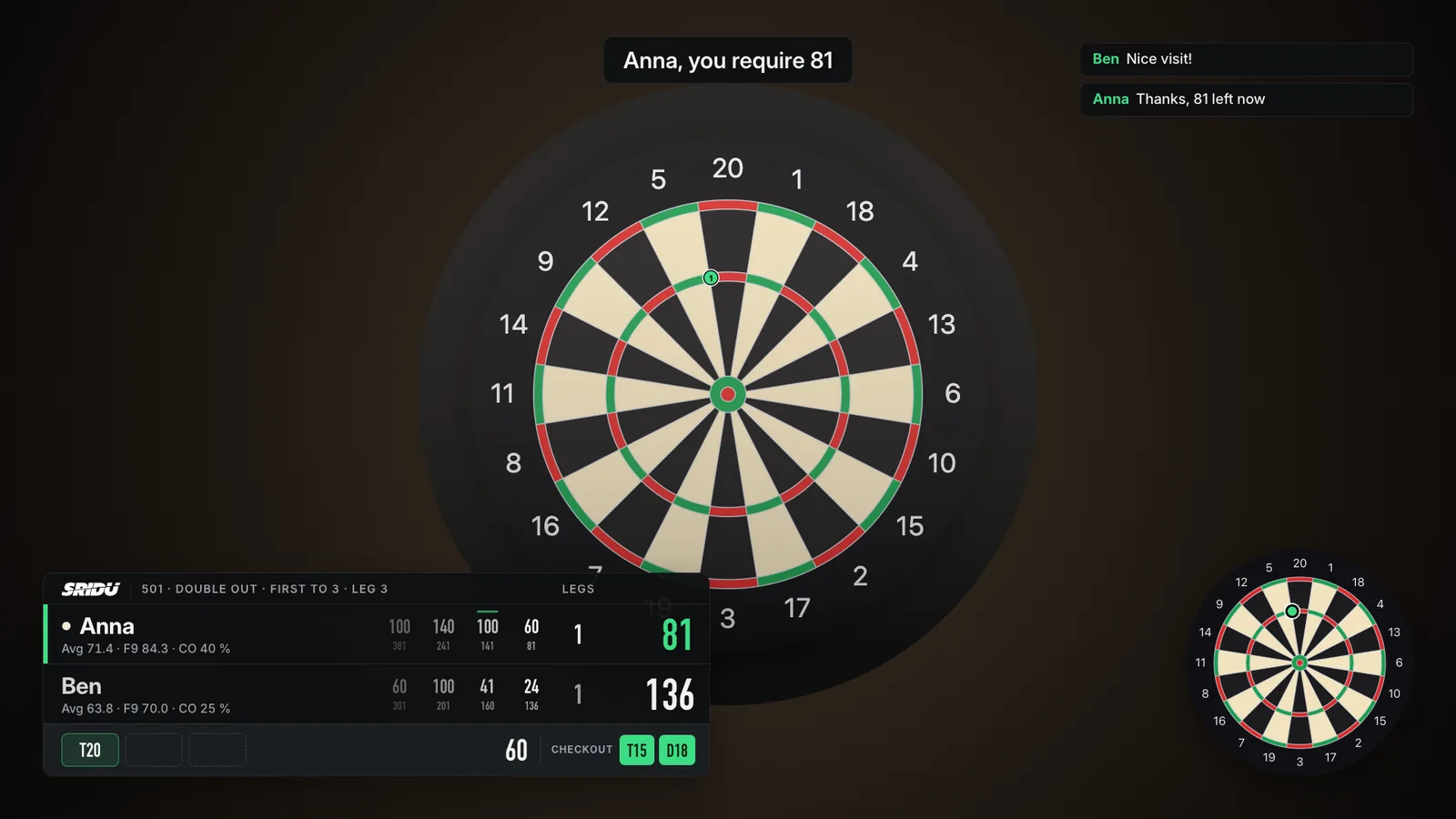
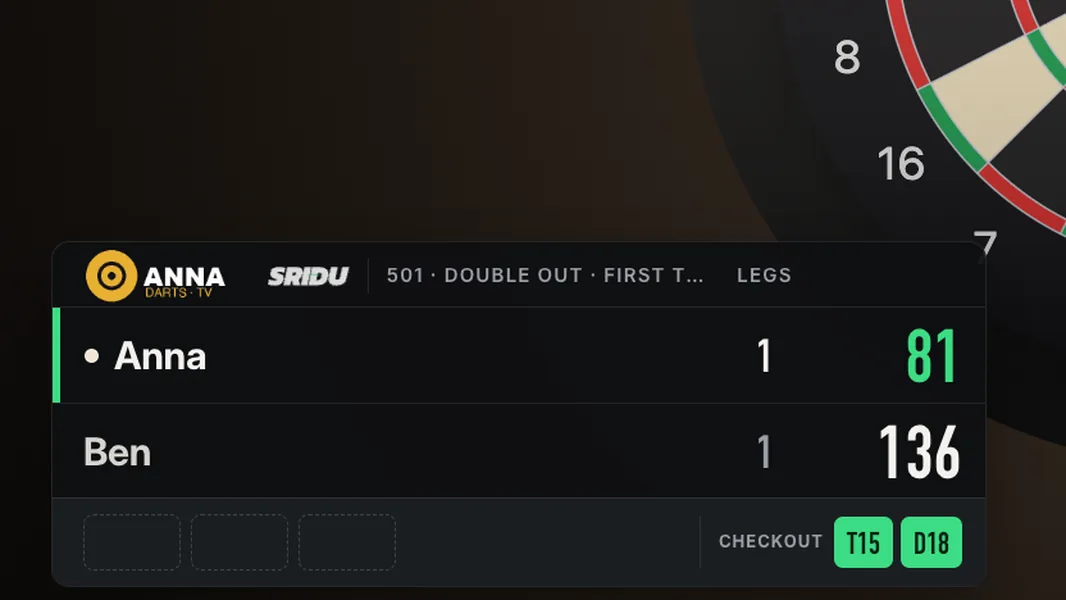
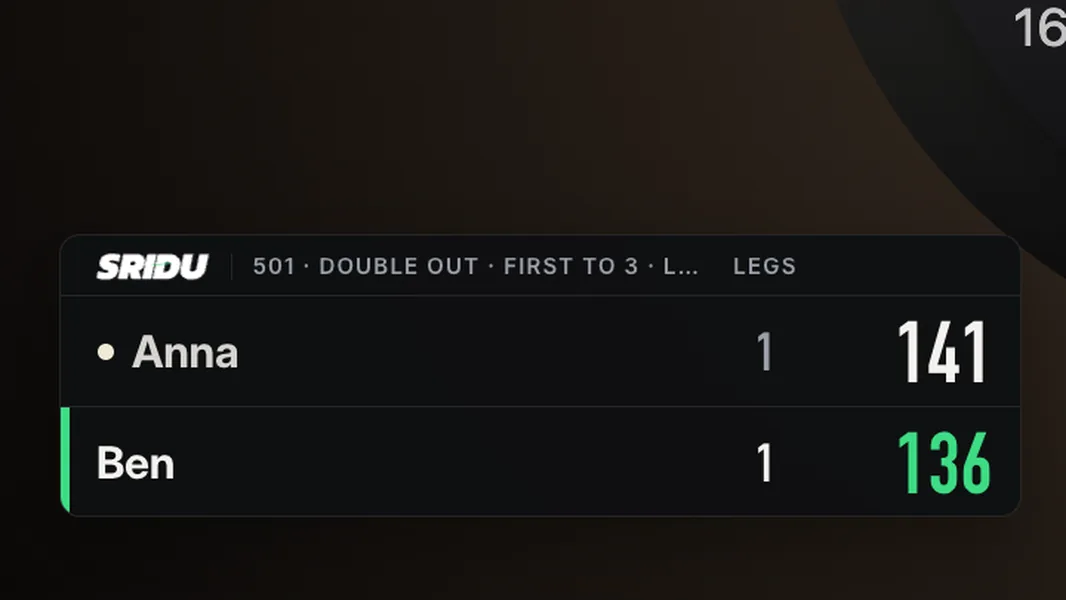
- 1ScoreboardOn at firstNames, legs and sets, the score left in big figures. A bar marks who is throwing, a dot who started the leg.
- 2Stats lineOff at firstAverage, first 9 and checkout rate under each name, updated after every visit. X01.
- 3Visit historyOff at firstThe last four visits beside each score, the rest below. A line marks visits where a finish was on. X01.
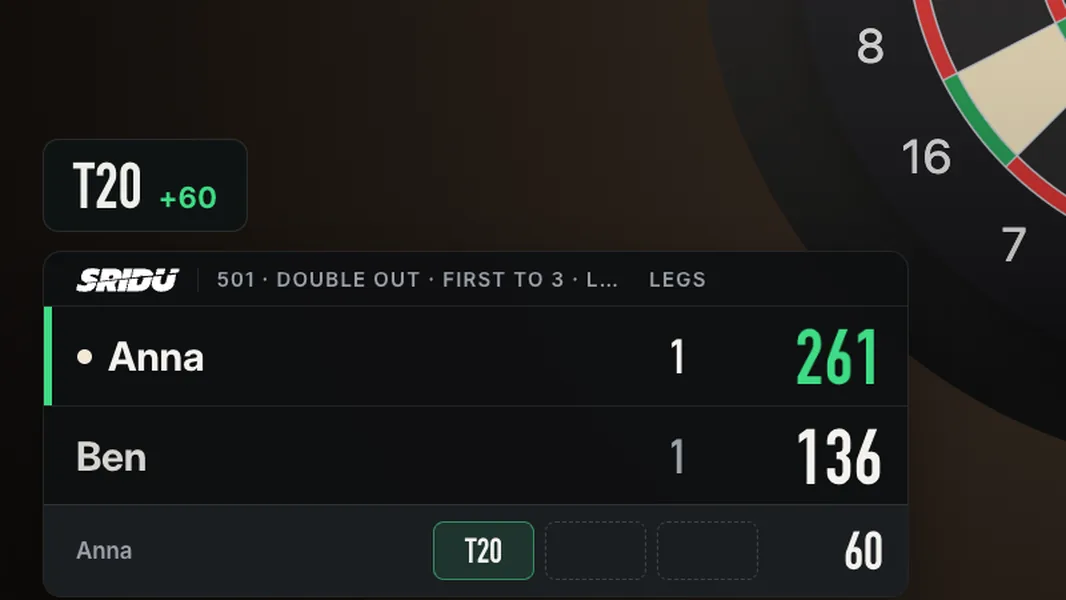
- 4Darts of the visitOn at firstThree slots that fill dart by dart, with the total. In the scoreboard or in a place of its own.
- 5CheckoutOn at firstThe way out as soon as there is one, updated after every dart.
- 6Mini boardOn at firstWhere each dart of the visit landed, in the opposite corner.
- 7Caller subtitlesOff at firstWhat the caller says, as a subtitle for viewers watching muted.
- 8Match chatOff at firstThe latest lines of an online match chat. Stays off with privacy on.
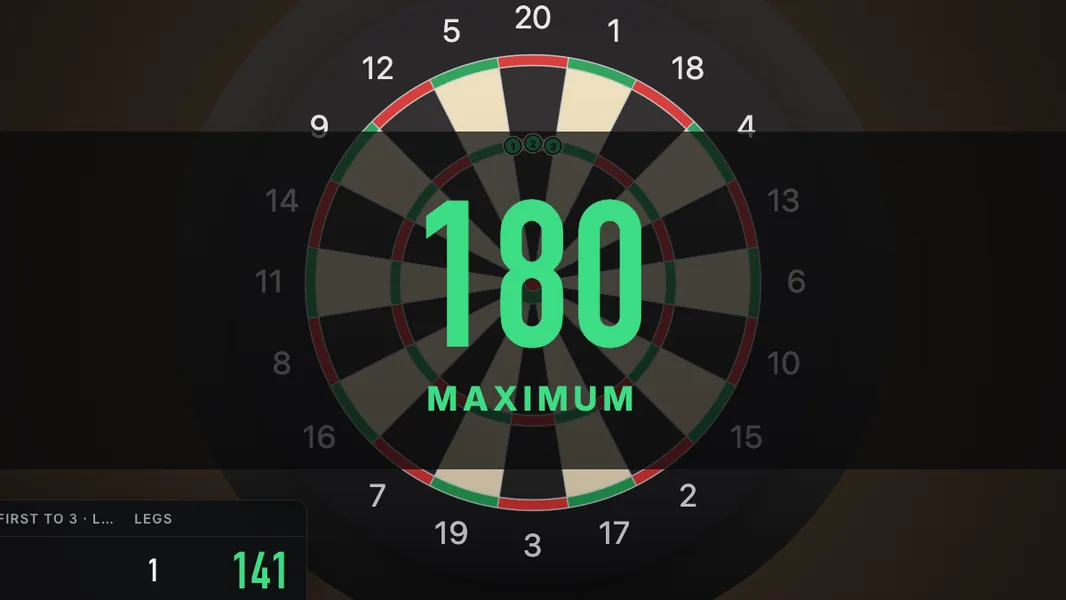
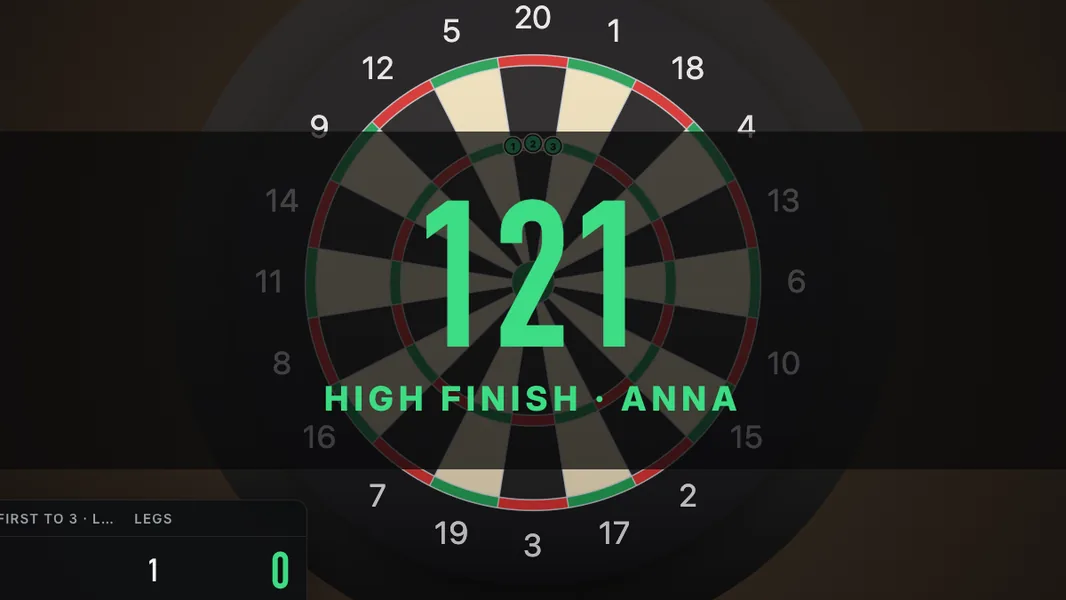
And the moments in between
Your look
Your colours, your logo
The overlay takes the colours of the app or the colours of your channel. Change them in the panel and the preview blends over at once.
- Four colour schemes from the app: Green, Daylight, Pub and Tour. Or “Like the app”, the default, which follows whatever your app shows.
- Your own accent colour for the score, the checkout and the effects, picked with a colour picker.
- The Sridu logo in white, dark on Daylight. It plays its cut at the start of every visit, or only every leg, every set, or never.
- Your channel logo next to it or instead of it. Sridu shrinks it and keeps it on your device, nothing is uploaded.
Set it up
Live in four steps
In the app: Settings, then Set up next to Streamer mode. During a match it is in the ⋯ menu.
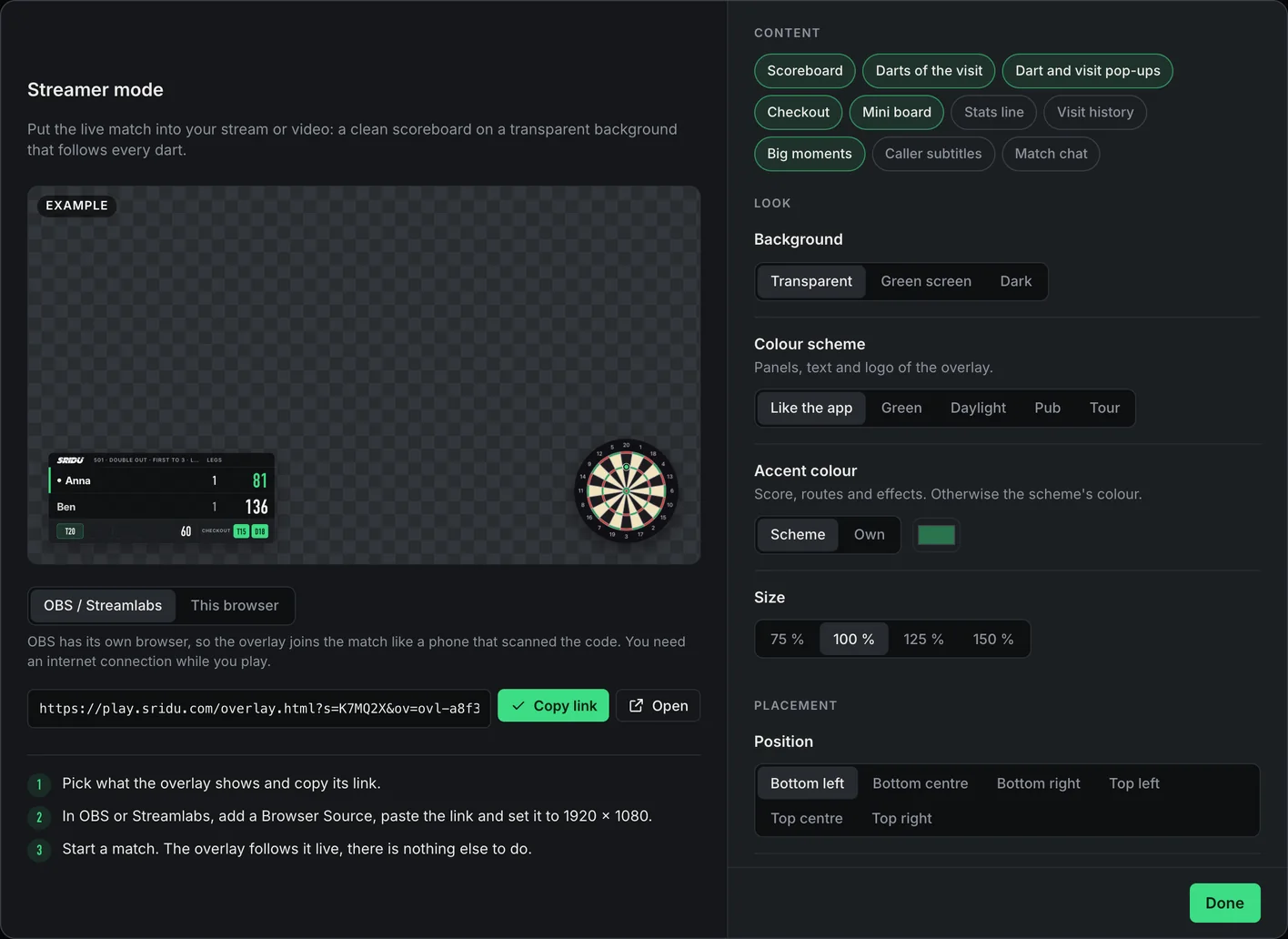
- Choose what it showsTick the parts and pick colours, background, place and logo. The preview shows the result at once.
- Copy the linkKeep OBS / Streamlabs selected and tap Copy link. If the panel asks, tap Turn on first.
- Add a Browser SourceIn OBS: Sources, +, Browser. Paste the link, width 1920, height 1080. Streamlabs works the same.
- PlayStart a match. The overlay follows every dart and waits between matches.
Keep the link to yourself. Anyone who has it can watch your match. If it gets out, tap New code in the Connect window and copy the overlay link again.
Placement and background
Fits any stream
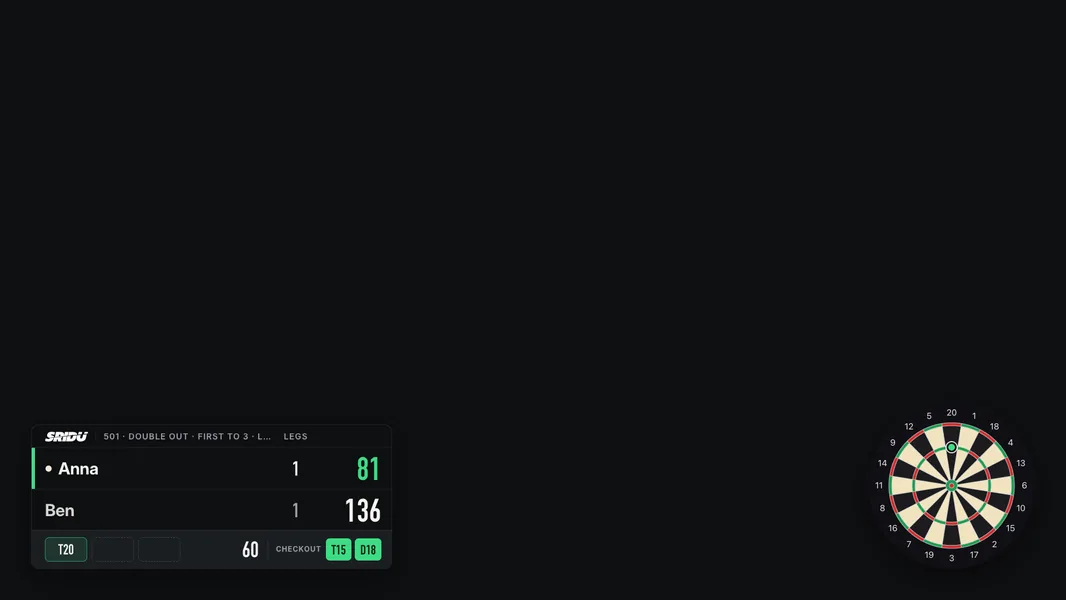
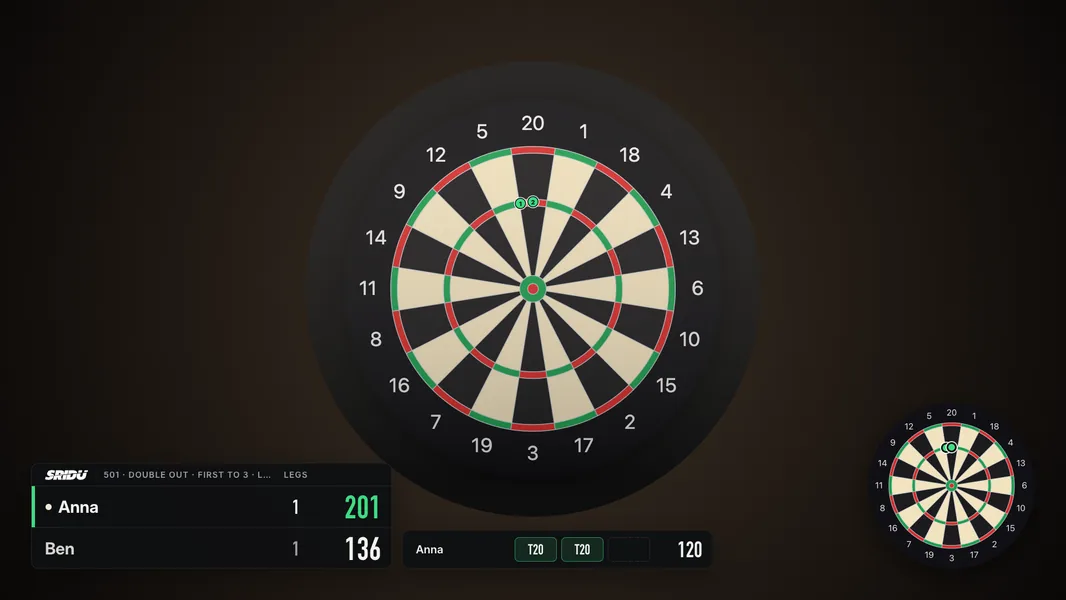
The scoreboard goes in one of six places, the mini board takes the opposite side. Four backgrounds for four kinds of stream.
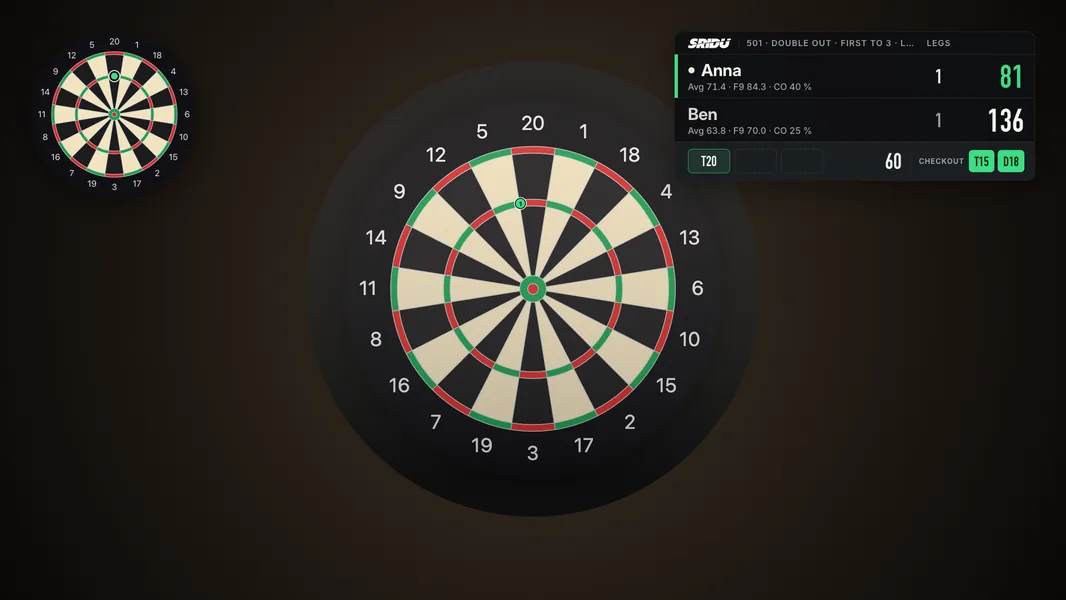
- Size75, 100, 125 or 150 per cent, for small sources and large screens.
- PrivacyOnly your own name and bots are shown. Everyone else appears as Player 2, Player 3 and so on, and the match chat stays off. Useful when you stream online matches against strangers.
- Connection noteA small note while no match is running. Switch it off if nothing should show between matches.
Every setting is also in the link
Every setting sits in the link, so you can also change it there. The panel only writes what differs from the default. Leave s, ov and me as they are: they connect the overlay to your board.
| Parameter | Values |
|---|---|
w | The parts, comma separated: score, visit, pop, checkout, board, stats, hist, fx, caller, chat |
bg | transparent (default), green, dark |
pos | bl (default), bc, br, tl, tc, tr |
size | 0.75, 1 (default), 1.25, 1.5 |
priv=1 | Privacy on |
clean=1 | Clean feed |
st=0 | No connection note |
logo | sridu (default), own, both, off. Your own logo is not in the link: the app sends it to the overlay. |
vp | Where the darts of the visit go: left out, in the scoreboard (default); bl, bc, br, tl, tc, tr for a place of their own |
th | The colour scheme: left out, like the app (default); default (Green), light (Daylight), pub, tour |
ac | Your own accent colour as six hex digits without #, e.g. ff5c8a. Left out: the colour of the scheme |
la | The logo animation: left out, every visit (default); leg, set, off |
Who it is for
Streams, videos and the club TV
- StreamersYour camera on the board, the score on top, like darts on TV.
- Video makersRecord with OBS and the scoreboard is in the video, no editing.
- Clubs and leaguesThe clean feed puts scoreboard and board big on a second screen.
Sridu on your channel costs nothing, monetised channels included. Details under who may do what.
No Browser Source?
Two ways into your stream
This browser is for programs that capture a window: open the link in a new window of the browser Sridu runs in and capture that window.
- OBS / StreamlabsA Browser Source with the link. Needs the internet while you play and a secure address (play.sridu.com has one). The overlay may run on another computer.
- This browserA window capture of a second browser window. Works offline and without https, but only in the same browser on the same computer.
FAQ
Good to know
Does streaming slow down the camera scoring?
Hardly. The overlay only animates what the graphics card handles smoothly, and the app sends at most ten updates a second, only while an overlay is open. On a computer that just manages the cameras, let OBS encode on the graphics card.
What does the OBS link need?
A secure address (https), an internet connection while you play, and the connection of your board must stay on. play.sridu.com has everything. A self-hosted Sridu opened over plain http offers only This browser.
Which games does it work with?
Any match you play in Sridu. X01 gets the most: the checkout, the stats line, 180s and high finishes. In other modes the scoreboard shows the figure that counts there.
Can the overlay run on another computer?
Yes, with the OBS link. It connects to your match like any other device, wherever OBS runs.
Can I show a whole tournament?
Streamer mode shows the match played at your board. For a whole tournament on a TV, open the tournament dashboard and switch to Big screen.
The overlay says it is waiting. What is wrong?
“Waiting for a match” is normal between matches. “Can’t reach Sridu” means the app is closed or its connection is off. With This browser the overlay has to run in the same browser as the app.
Go live tonight
Set up the overlay once, and every match after that goes on air by itself. The caller sounds good on stream too.